
What if your next customer is searching for your business on Google, but they are unable to find you? While they’re scrolling past your competitors, you’re losing a sale you didn’t even know was on the table.
It’s not because your business is doing anything wrong. It’s because of a few small, easy-to-miss gaps in how Google sees your business online.
This gap often happens when your Google Business Profile (GBP) is not properly optimized. Google uses your profile to understand your business and decide when to show it in local searches. Even small things like missing information or incorrect details can affect your visibility and reduce your chances of appearing in front of potential customers.
But what exactly is Google Business Profile, and why does it matter so much for your local visibility?
What Is a Google Business Profile?
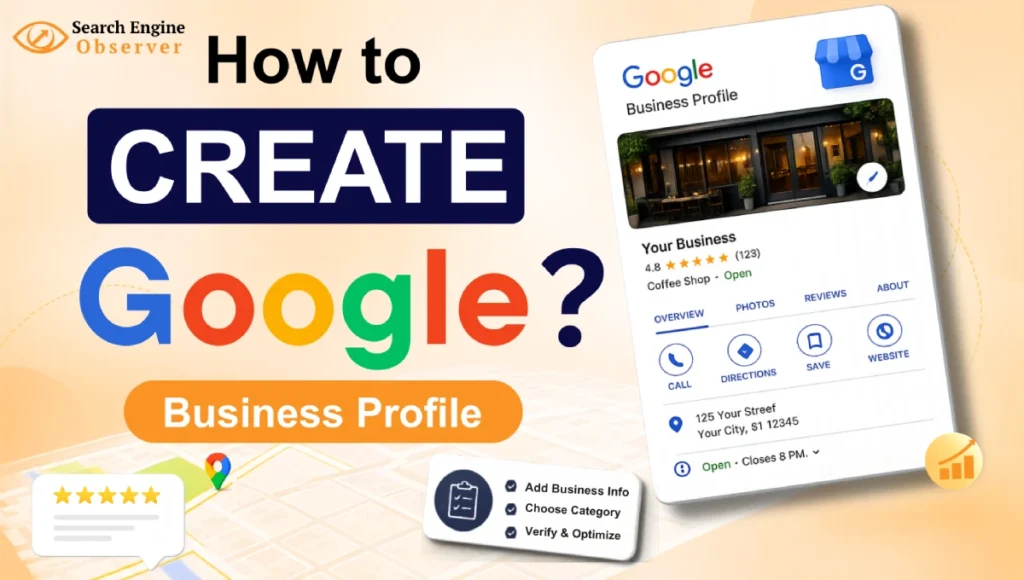
Google Business Profile (GBP) formerly known as Google My Business is a free tool from Google that controls how your business shows up on Google Search and Maps. In simple terms, it’s your business’s public profile on Google – a single place where you mention your hours, address, phone number, website, photos, services, reviews, and posts.

It makes you easy to find in local searches, builds trust through verified reviews, and helps customers take action – call, message, or get directions – right from Google, without any extra effort on their part. Now that you know why it matters, here’s how you can set up your own Google Business Profile in just a few simple steps.
How to Create a Google Business Profile
Creating a Google Business Profile is simpler than you might think. Just follow these simple steps to get your business listed on Google.
Start by visiting the Google Business Profile website
Your first step is simple – head over to the Google Business Profile website. Once you’re there, click on ‘Start now’ to begin setting up your profile.

Search for your business name
Enter your business name to check if it’s already listed on Google. Sometimes, your business may already be listed even if you didn’t create the profile yourself.
If you find your business profile, click on “Request access” to claim it and follow the steps to complete the process.
If you don’t find any existing profile, you can create a new one by clicking on “Add your business to Google.”

Select your business type
In this step you have to choose your business type according to how customers reach you – pick whichever fits how you run things:
- Local store – customers come to you (shop, restaurant, salon)
- Service-area business – you go to them (plumber, electrician, mobile groomer); no public address needed here, you have to just mark your service area
- Online retail – you sell mainly through your website

You have to select more than one if it fits – like a Restaurant with both a shop and home delivery, so you could tick both local store and service-area.
Choose your business category
This step is about choosing your business category – and you have to be as specific as possible while picking it from the dropdown. So instead of just going with “Restaurant,” you have to pick something more precise like “Italian Restaurant.”
The more exact you are, the easier it becomes for Google to match you with the right customers searching for exactly what you offer.

Location setup
If you have a local store, you have to add your address here – fill it in exactly the way it appears elsewhere, like on your website or other listings, so there’s no mismatch.

Then, you have to pin your exact location on the Google Map that shows up. This helps Google place you correctly on Maps, so customers can actually find and navigate to you without confusion.
But, if you’re a service-area business, meaning you go to your customers instead of them coming to you, this step works a bit differently. You don’t need to add a full address or pin an exact location. Instead, you have to mark out the areas you cover.
Add contact details
This step is where you add your phone number and website – basically what lets customers actually reach out to you.
Go ahead and enter your phone number. Keep in mind, this is the number your business calls will come on, so use one that someone from your team will actually pick up. If you’ve got a website, add that too – it lets customers check you out online before they call or visit, and it makes your listing look more trustworthy.
Agree to Terms of Service
To move forward with your listing, you need to accept Google’s terms of service. After reviewing the terms, once you’re ready, just click Continue and proceed to verification.

Verify your business
This step asks you to choose a verification method to prove your business actually operates at the address you’ve given. Until this is done, your listing basically stays hidden, so it’s an important one to complete.
Depending on your business type, Google gives you a few different ways to verify:
Phone or Email:You’ll receive a verification code by text, call, or email. Just enter the code, and you’re all set. This is usually the quickest option.
Video Verification:You’ll need to record a short video of your business. Show your sign, workspace, or products so Google can confirm your business is real.
In fact, video has become the primary verification method in 2026. Google itself now recommends this option in its official documentation:
To verify your business, you can record a video that shows your business info. If your business is eligible, we recommend that you use this option.
Postcard by Mail:Google will send a postcard with a verification code to your business address. It usually takes 5 – 14 days to arrive.
You’ll usually only see one or two of these options based on your business category and location, so just pick whichever one Google offers you and follow the steps for it.
Finish setting up your profile
Once your business is verified, this step is about filling in every last detail, so your profile actually works for you – an empty listing just doesn’t perform as well.
Here’s what you have to add:
Business hours: Enter your regular hours, and don’t skip holiday hours either. Customers rely on this to know exactly when you’re open.

Services or products list: Add everything you offer, so people searching for a specific service can actually find you.
Business description: Write a short, clear summary of what your business does. This helps both customers and Google understand your business better.
Attributes: These are the extra details like wheelchair accessibility, women-owned, outdoor seating, and so on. Add whichever ones genuinely apply to you.
Photos: You have to upload at least your profile logo and a cover photo, but adding more photos of your space, team, or work is always better. Listings with more photos tend to get more attention.
Messaging: Turn this on so customers can message you directly through your listing, instead of only calling or visiting your website.
💡 Pro Tip
The more complete you make this, the stronger your listing looks – both to Google and to anyone checking you out before deciding to visit or call.
What if your business is already listed ?
Sometimes, when you search for your business name, you might discover that it’s already listed on Google-even if you never created a Google Business Profile yourself.
This can happen because Google automatically creates business listings using information it finds across the web, or because customers have added your business location to Google Maps.
If you find an existing listing, don’t create a new profile. Instead, claim the existing one.
Here’s how you can claim your business’s already existing Google Business Profile:
- Go to Google Search and type your business name along with your city.
- If your business listing appears, click on it.
- Look for the “Own this business?” button. If you see it, no one has claimed the profile yet. Click it to start the claim process.
If you see “Request access” instead, it means someone else already manages the profile. Click it to send them an access request, and you’ll get access once they approve it.
- Sign in with your Google account and follow the steps to request ownership.
- Google will ask you to verify that you’re the actual owner. Depending on your business, verification may happen through a phone call, text message, email, video verification, or postcard.
- If you had to request access, the current owner has 3 days to respond. Keep the confirmation email safe.
If they don’t reply, Google may give you the option to claim or verify the business yourself. If that option doesn’t appear, or your request is denied, you’ll need to contact Google Support and provide proof that you own the business.
Setting up your Google Business Profile is just the beginning, but it’s not the final one. To make the most of your listing and improve your visibility on Google, you need to keep improving and updating it regularly.
How to Optimize Your Google Business Profile
Setting up your profile gets you on the map – optimizing it is what actually gets you noticed.
When someone searches for a business like yours, let’s suppose “cafe near me” or “Plumber in Los Angeles” Google doesn’t show every profile. It gives more visibility to businesses with complete, updated, and trustworthy information.
So, what does optimizing your Google Business Profile actually involve? Here are the key things you need to focus on.

Keep your NAP consistent (Name, Address, Phone Number)
Your business name, address, and phone number (NAP) should always be accurate and consistent. This makes it easier for customers to find and contact you, and it also helps Google trust your business information.
Wherever your business is listed – Google, your website, Facebook, the details need to match exactly everywhere. Even a small difference like “St.” vs “Street” can confuse Google.
And it’s not a one-time fix – every time your address or number changes, you’ve got to update it everywhere again to keep things consistent.
Pick the Most Specific Category You Can
As mentioned earlier, don’t settle for a generic category. Dig a little deeper and pick something more specific that actually describes what you do – the more precise, the better. Let’s say if you own a dental clinic, don’t choose “Health” or even “Medical Clinic.” Instead, select “Dentist”
Add photos regularly
Most businesses upload a few photos when they set up their profile and then just forget about it – don’t make that mistake.
Google tends to favor profiles that stay active and consistently updated. Think about your space, your products, your team, or any events you’re hosting. Just make sure they’re well-shot, properly sized, and posted consistently, not dumped all at once.
This matters even more if you have multiple locations. Google is testing a new swipeable carousel in search ads that lets people swipe through your different branches. And in the April 2026 SEO updates, businesses with multiple locations are advised to update their Google Business Profile (GBP) details and add good photos for every branch. If one location has a weak or incomplete profile, it could affect how all the business locations appear in the carousel.
Update your hours for holidays and events
Regular hours are set once, but holidays, events, and closures need manual updates every single time. If even one update is missed, a customer may arrive to find your store closed – an experience that can damage both customer trust and your online reviews.
Write a Business Description
Your business description is where you get to talk about your products, services, mission, and history – and doing it well can actually help your ranking and bring more customers through the door.
Just a few things to keep in mind – be honest and stick to info that’s actually relevant to your business.
Avoid low-quality content such as typos, misspellings, or random text, don’t mention prices, discounts, or promotional offers, and never include links, as Google doesn’t allow them in the business description. As Google says in its official documentation:
You should be upfront and honest about the information provided, focusing on content that’s relevant and useful to your customers to understand your business. Content that’s irrelevant to your business or has no clear association with it isn’t allowed.
Respond to every review – positive and negative
Whenever a customer leaves a review on your Google Business Profile, you should reply to it. Doesn’t matter if it’s a good review or a bad one.
It shows customers you genuinely value their feedback and helps build trust. It also signals to Google that your business is active, which can boost your visibility in search results.
Use the “Posts” feature for updates and offers
The “Posts” feature on Google Business Profile lets you share mini social-media-style updates directly on your business listing things like offers, events, or “what’s new” announcements. You can post little updates that show up right when someone searches for you or finds you on Maps.
Posting regularly keeps your profile looking active and engaging, and each post should have a good photo, clear copy, and a strong call-to-action.
Now that you know the best ways to optimize your Google Business Profile, here’s some good news – managing it has become much easier with Gemini. Let’s take a look at how you can use it to manage your profile more efficiently.
Manage Your Profile Conversationally with Gemini
Google has made it possible to manage your Business Profile just by chatting with Gemini, instead of logging into a separate dashboard every time.
Once connected, it can help you to:

Update your profile: Need to make a change? Simply ask Gemini. It can update your business hours, food menus, photos, attributes (like “Wi-Fi” or “Outdoor Seating”), contact information, action links, and even provide your profile’s location details when needed.
Try asking: “Update my business description“
Engage with customers: Rather than managing reviews and posts separately, you can let Gemini assist with both. It can pull up your recent reviews, draft replies on your behalf, and help you create or schedule new posts.
Try asking: “Help me draft a reply to my latest review“
Access insights: Want a clear picture of how your business is performing? Just ask. Gemini can break down your performance metrics – impressions, clicks, direction requests – and show you the exact keywords customers are using to find you. It’s worth reading these numbers alongside your website’s own data in Google Analytics, so you get the complete picture.
Try asking: “Show me my performance metrics for the past month“
Basically, Google turned Gemini into a shortcut for managing your whole profile through conversation.
How do you actually connect it?
- Go to gemini.google.com
- Make sure you’re logged into the same Google account tied to your Business Profile
- Just ask Gemini something about your Business Profile – like “what are customers saying about us lately?” (if it doesn’t automatically pick it up, just add @Google Business Profile in your message)
- If it’s not connected yet, Gemini will show you an option to connect it
- Just follow the steps it gives you to connect
A Quick Note –
It’s still rolling out gradually, so it may not show up for everyone just yet.
Final Insights
By now, you know that creating a Google Business Profile is only half the job. What really helps your business stand out is keeping your profile complete, accurate, and active.
Whether it’s updating your business hours, adding new photos, responding to reviews, or posting regular updates, these small efforts can make a big difference in how easily customers find and trust your business. It also puts to rest the idea that SEO is somehow dead in 2026 – work like this is proof that visibility still has to be earned, just through more channels than before.
And with Gemini making it possible to manage your profile through simple conversations, staying on top of these updates has become much easier.
So, if you haven’t set up your Google Business Profile yet, now’s the time to do it. And if you already have one, spend a few minutes putting these optimization tips into action.
If you have any questions or additional tips, share them in the comments below👇. We’d love to hear about your experience.